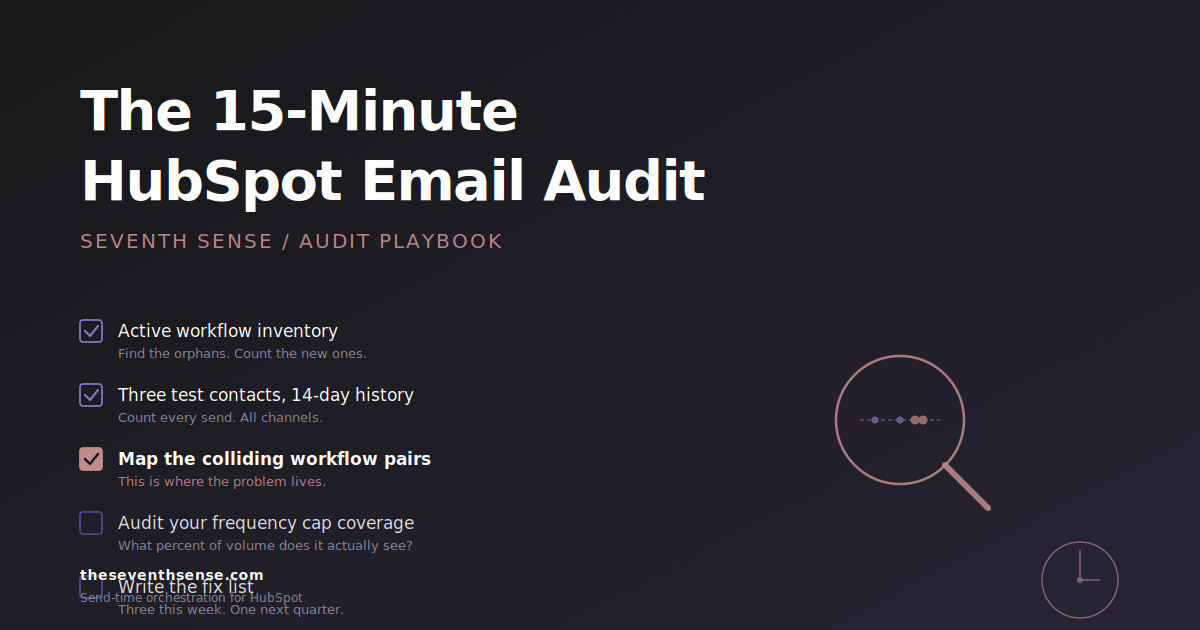
The most useful thing I can give a HubSpot marketer this morning isn't a framework or a five-stage model. It's a stopwatch. Most email problems hide in plain sight inside a portal, and the reason they keep hiding is that nobody has spent fifteen consecutive minutes looking for them. This post is a HubSpot email audit you can run today, by yourself, with nothing more than your portal and a notes file.
I've run some version of this audit on more than a hundred HubSpot portals. The pattern is so consistent it's almost comforting. The fix usually takes longer than the audit, but the audit itself never does. Set a timer for 15 minutes. Let's go.
Before you start: what this HubSpot email audit is and isn't
This is a collision and over-messaging audit. It tells you whether your contacts are receiving too many emails too close together. It does not audit your content, your segmentation, your subject lines, or your authentication setup - for that side of deliverability, the SPF, DKIM, and DMARC walkthrough is the right starting point. Those are different audits and they take longer.
What you'll have at the end of 15 minutes: a list of specific contacts who are being over-mailed, the workflows responsible, and a prioritized fix list. That's enough to act on this week.
Minute 0 to 2: Pull your active workflow inventory
In HubSpot, go to Automation, then Workflows. Filter by "Active." (HubSpot's knowledge base has the click path if your portal hides it.) Note three numbers:
- Total active workflows that send email.
- Workflows created or modified in the last 90 days.
- Workflows owned by someone who no longer works at your company, or with no clear owner.
If the third number is above zero, that's your first finding. Orphaned workflows are how most collision problems start - they keep running, nobody reviews them, and they stack on top of the workflows the current team built.
Minute 2 to 5: Pick three test contacts and look at their email history
The trick here is to pick contacts who are likely to be experiencing the problem, not random ones. Use these criteria:
- A long-tenured customer who is enrolled in multiple programs.
- A net-new MQL from the last 30 days.
- A contact in active sales engagement (recently touched by a sales rep).
For each, open the contact record, go to the email history, and count the emails received in the last 14 days. Include everything - marketing emails, sales emails, sequence sends, transactional sends. The full picture.
Write down the totals. Note any 14-day window where the contact got more than one email on the same day. Note the longest single-day stretch.
If any of the three got more than 8 emails in 14 days, you've already found the problem - that's classic over-messaging. If any got more than 3 in a single day, you've already found an email collision.
Minute 5 to 9: Identify the colliding workflows
For each multi-email day you flagged, look at which workflows or campaigns actually triggered those sends. HubSpot's email history shows the source for each send. Note which workflows keep appearing together.
The pattern you're looking for is workflows that consistently fire near each other. Common offenders in my experience:
- The lifecycle nurture and the newsletter. Lifecycle nurtures often run on a fixed cadence and the newsletter goes out on a fixed day. When the cadence intersects, you get collisions.
- The behavioral re-engagement workflow and the product update. Re-engagement workflows tend to fire on activity, which clusters around product update sends. The compound is brutal.
- Any sales sequence on top of any marketing workflow. Sales sequences don't see marketing sends and vice versa. Whoever the contact is most engaged with, the rep notices and starts a sequence. Now there's a stacking problem.
Write down the three workflow pairs that are most often colliding. This is your fix list.
Minute 9 to 12: Check your frequency cap settings and what they cover
Go to Settings, then Marketing, then Email. Find your frequency cap. Note the number and the window. Then ask yourself the harder question: how much of your actual sending volume does this cap cover? (If you haven't read it, the post on what the HubSpot email frequency cap actually does covers the gaps in detail.)
Quick way to estimate. Pull the last 30 days of email send counts, broken out by:
- Marketing emails sent through the marketing tool (covered by cap).
- Sales emails and sequence sends (not covered).
- Transactional emails (not covered).
- Anything sent via third-party integrations (not covered).
If buckets 2 through 4 add up to more than your bucket 1 volume to engaged contacts, your cap is decorative. That's a real finding and it changes how you think about every frequency decision downstream.
Minute 12 to 15: Write the fix list
You now have:
- A count of orphaned and unowned workflows.
- Three real contacts with documented over-messaging.
- The top three colliding workflow pairs.
- The percentage of your volume your frequency cap actually covers.
That's enough to draft a fix list with four entries, in this order:
- Suppress or retire the orphaned workflows. Anything without an owner that's still running. If nobody can defend it, kill it.
- Add cross-suppression on the top colliding pair. Pick the pair that showed up most in your contact history. Add an enrollment rule that excludes contacts in the other workflow. This is a tactical patch, not a strategy.
- Stagger the calendar. If your newsletter goes out Tuesday at 10 AM and three of your other programs also default to Tuesday at 10 AM, change at least one of them. You'll cut collisions in half by Wednesday.
- Plan the structural fix. Cross-suppression rules don't scale. The structural fix is recipient-centric orchestration - a layer that sees every queued send across every program and applies frequency logic at the contact level. That's a bigger change and it's worth scheduling, not improvising.
What to do after the audit
The first three items are this week's work. The fourth is the next-quarter work. Most marketers I've seen run this audit do the first three immediately, then look around for the right way to do the fourth - usually right after they notice the engagement-based reputation signals that Gmail's sender guidelines describe starting to slide.
This is the gap we built the Over-Messaging Tracker to close in April 2026. It does what the 15-minute audit does, but at the scale of your full database instead of three sample contacts - mapping where workflows are colliding, which contacts are over-messaged, and what your real recipient-level frequency looks like across marketing, sales, and transactional sends. The audit gives you the shape of the problem. The tracker gives you the full picture.
Why a 15-minute audit beats a 6-week strategy review
The biggest enemy of email program health isn't the wrong strategy. It's the right strategy that was never tested against reality. A quarterly strategy review will produce a deck. A 15-minute audit will produce a list of three real contacts with names attached, and that's the artifact that gets the org to act.
Audit first. Strategize second. In my experience, the audit changes what the strategy needs to say.
Frequently asked questions about a HubSpot email audit
How often should I run a HubSpot email audit?
For a portal running fewer than 10 active workflows, once a quarter is fine. For a portal with 15 or more active workflows, once a month is more honest - the maintenance burden of cross-workflow logic grows nonlinearly with workflow count, and the audit is the cheapest way to catch the drift before it shows up in your deliverability metrics.
What's the difference between a deliverability audit and a HubSpot email audit?
A deliverability audit covers domain authentication, IP reputation, bounce patterns, and ISP-specific issues. A HubSpot email audit covers what's happening inside your portal - workflows, send patterns, cap coverage, and recipient-level frequency. They overlap, but neither replaces the other. If your deliverability is declining and your authentication is clean, the cause is usually inside the portal.
Can I automate a HubSpot email collision audit?
Partially. HubSpot's native reporting doesn't roll up sends at the recipient level across the marketing, sales, and transactional channels, so a fully automated audit needs a layer that does. Most teams either run the manual audit on a sample and extrapolate, or use a third-party tool that ingests the full send picture. The manual version is the right place to start because it teaches you what to look for.
What should I do if I find a contact who's been over-messaged?
Two steps. First, identify which workflows contributed and whether any of them shouldn't have fired for this contact - that's your tactical patch. Second, treat the contact as a sample, not an exception. If one of your test contacts is over-messaged, dozens or hundreds of similar contacts are too, and the structural fix is what you need to schedule next.
Where to go from here
Run the audit. Write the list. Fix the orphans this week. If you want the database-wide view that takes the audit from sample to full coverage, the free trial of Seventh Sense connects to your HubSpot portal in about 15 minutes and surfaces the same patterns across every contact and every program at once.
The audit is the cheapest tool you have for the most expensive class of email problems. Use it before the strategy review, not after.
See what your email program could be doing.
Connect Seventh Sense to your HubSpot portal and watch the AI surface per-person engagement profiles, per-inbox-provider performance, and AI-driven optimization recommendations - within 24 hours.
Try it free →